When it comes to note-taking apps, Notion is one of the best. The app is available on the web as well as for Android, iOS, Windows, and macOS, and is a flexible and fluid tool you can use to document just about anything.
A big part of Notion’s appeal is its versatility. It’s like Google Docs, Trello, Wikipedia, and Apple Notes, all rolled into one app–with a dash of artificial intelligence on top. You can use it in a host of different ways, for everything from grocery lists to project management, and you get all the basics for free as an individual user (more advanced features for teams start at $12 per month).
Maybe you’re already a seasoned Notion user, maybe you’ve never opened the app and are thinking about giving it a try, or perhaps you’re somewhere in between—but these tips should help you get more out of the app.
These tips are written with the web interface in mind, which is the best place to use Notion to its full potential, but these features are available through the mobile apps too.
1. Automate tasks with buttons
If there’s something you find yourself doing a lot in Notion (like inserting headings or editing a page), create a button for it. Hover over where you want the button, click the + (plus) icon, then choose Button. Notion will prompt you to give the button a name and icon, and you can then build an automation that runs when the button is clicked.
2. Upload your own icons and emojis
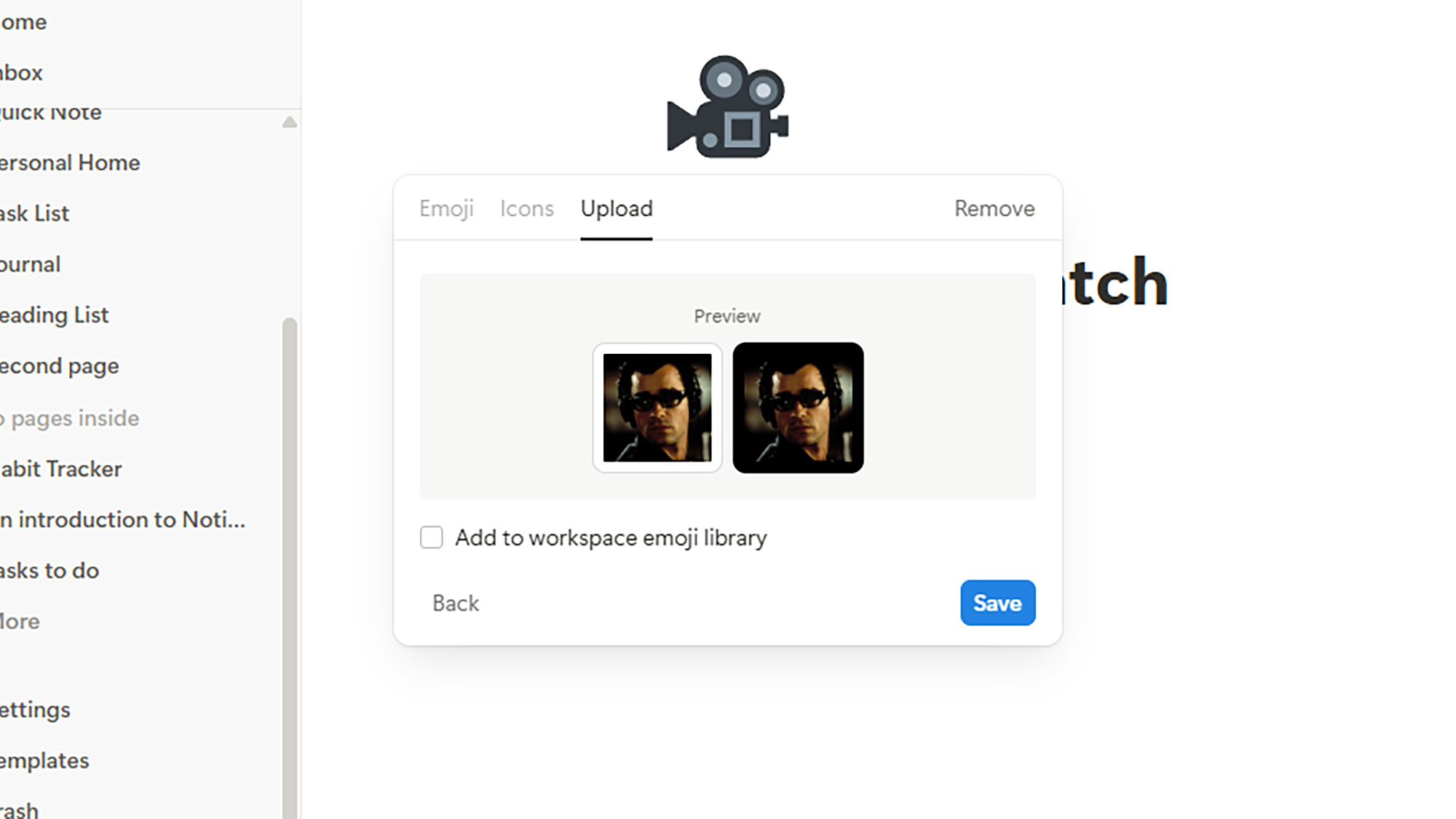
Icons and emojis pop up everywhere in Notion, representing everything from individual tasks to entire pages. And while you get plenty of choice by default, you can upload your own art via the Upload tab wherever an icon or emoji can be selected. Maybe you could put a mini picture of your pet next to any pet-related tasks that need doing, for example.
It can add an extra level of customization and personalization to your Notion account that works really well, especially with simple images. Whenever you upload something new, you’ll see an option to give it a name and use it across your workspace—graphics that you’ve uploaded yourself can be managed by clicking Settings on the left, then Emoji.
3. Tag anything in Notion
Wherever you are in Notion, if you type the @ sign, you open up quite a few useful options. In the same way you can tag friends on social media, you can then start tagging pages, people, and dates across your Notion workspace. You can also type @remind followed by a date (like “January 3” or “tomorrow”) and you’ll get an alert at the specified time.
4. Get started with templates
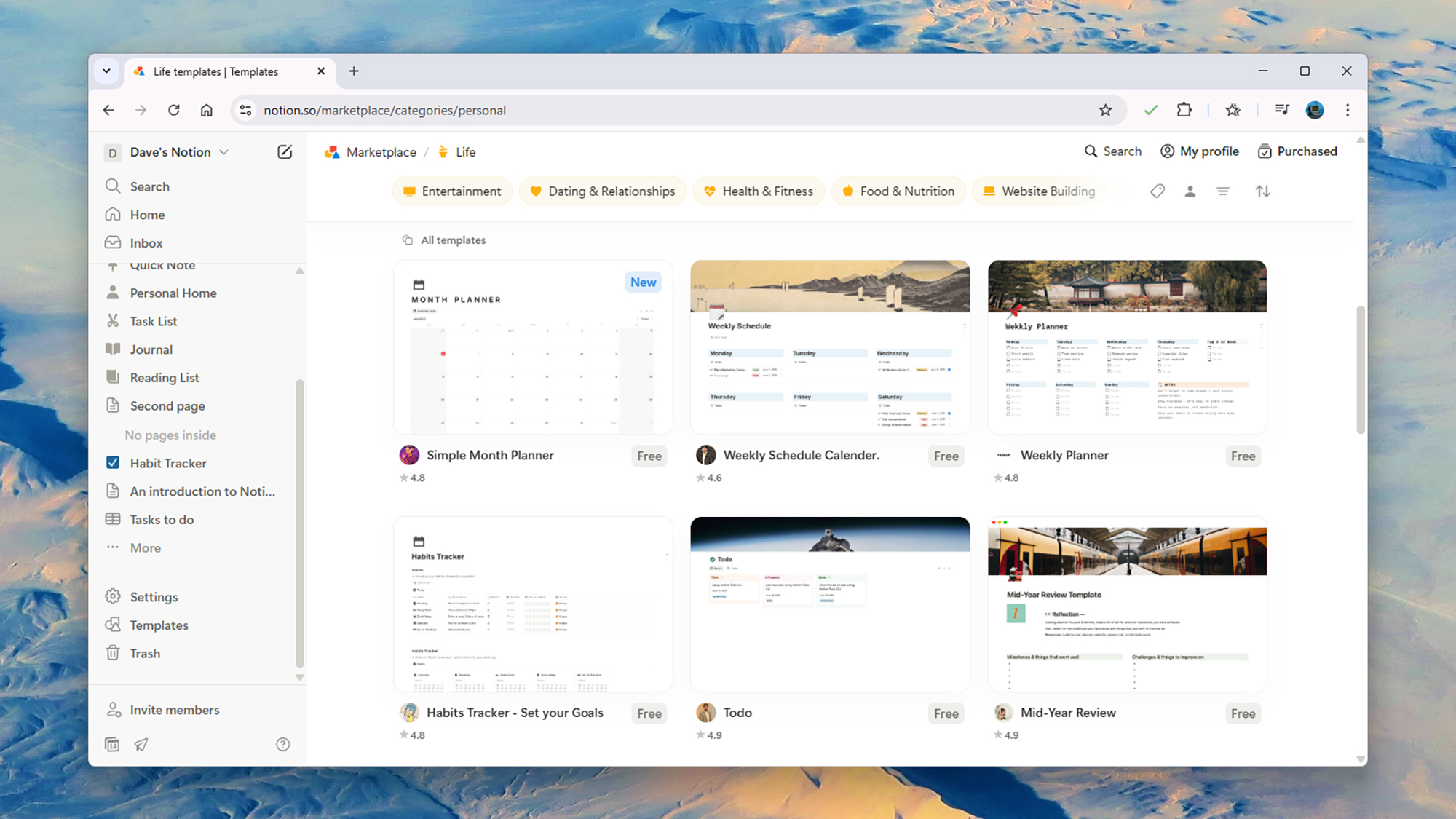
Notion comes with a wide selection of templates for starting your pages—and for beginners, they’re a great way of seeing what the app can do. Click Templates on the left-hand panel, and you can then browse via the categories (everything from Website Building to Proposals & Pitches) or use the search bar to look for something specific.
Some of these templates come with prices attached, but you’ll find plenty of free ones, and you can click on any of them to see details and reviews from other users. When you’ve found one you like, click Add to import it into your own Notion account. As these are templates, you can of course adapt them to suit your own needs.
5. Know the keyboard shortcuts
Keyboard shortcuts are the ultimate productivity hack because they help you get more done in less time, and Notion has a full list here. Some of the ones you might find most helpful include Ctrl/Cmd+N to create a new page, Ctrl/Cmd+Shift/Option+0 to create some new text, and /image to bring up the image import tool inside a Notion page.
6. Introduce your own formulas
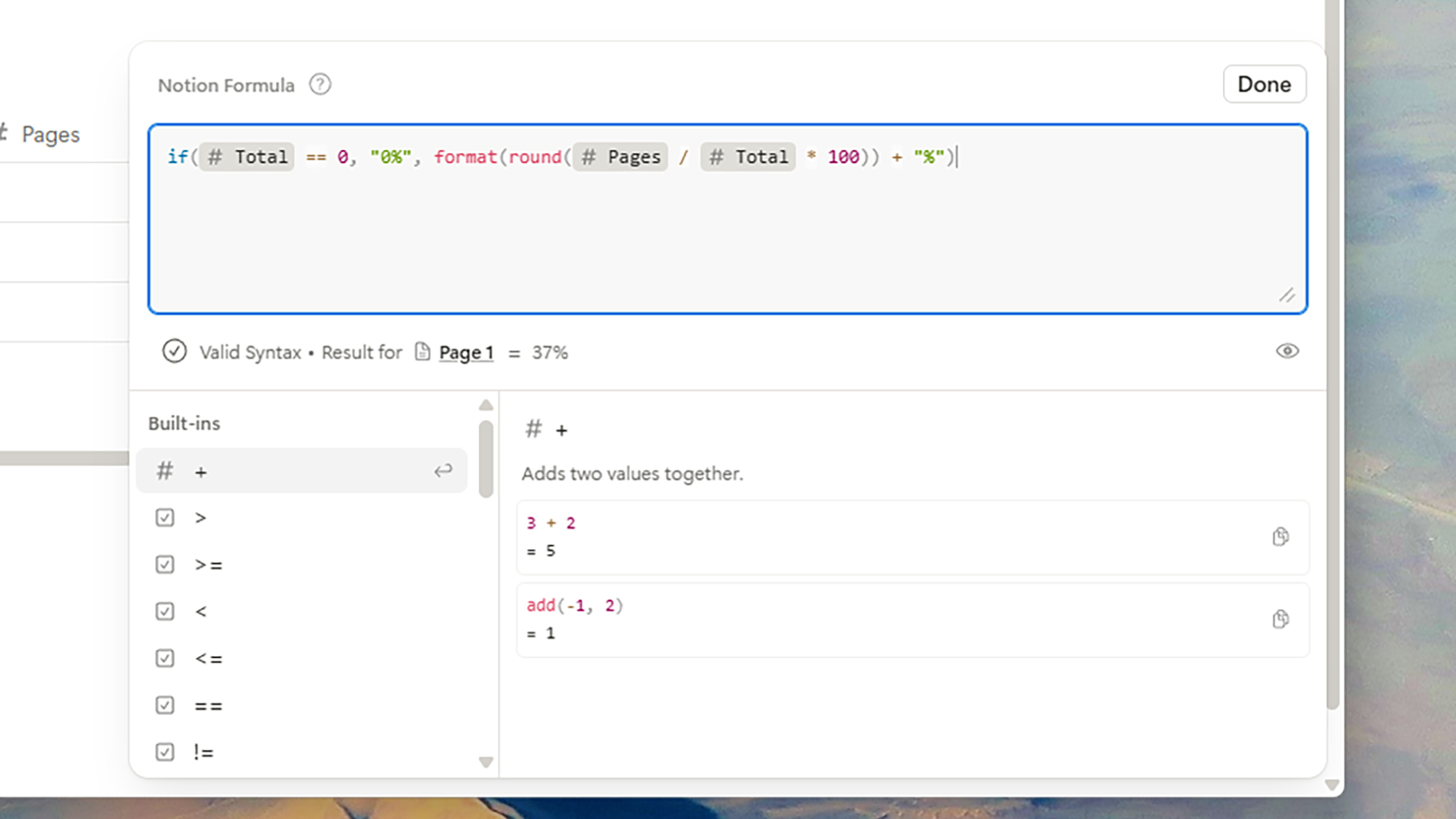
Unless you’re a math or spreadsheet whizz, the thought of using formulas in Notion can be a daunting one—but they’re not difficult to use, they can be really useful, and there’s lots of help available inside Notion if you get stuck. Start to get to grips with formulas, and you’ll find you can level up in terms of your pages and what Notion can do for you.
Creating formulas is as simple as typing them into databases, as explained by Notion. You can generate deadline dates, for example, show percentages for progress, and apply formatting based on other data—so tasks due in the next week get color-coded red and are marked high priority. That’s just the start when it comes to what formulas can do.
7. Keep blocks in sync
There may be times when you need the same information updated across multiple pages, and that’s where synced blocks come in. Select your original blocks, use Ctrl/Cmd+C to copy them, then paste them into a different location with Ctrl/Cmd+V—on the pop-up window that appears, choose Paste and sync to keep the copies in sync with the originals.