Spam calls are the word, a waste of your time and a threat to your privacy and security. Unfortunately, they can be very effective and profitable for the scammers on the other end, which is why these unwanted calls persist.
You can fight back through. Both Apple and Google have built anti-spam technologies. Apply some of these settings and features, and you should have fewer spam calls interrupting your day.
If you’re on an iPhone
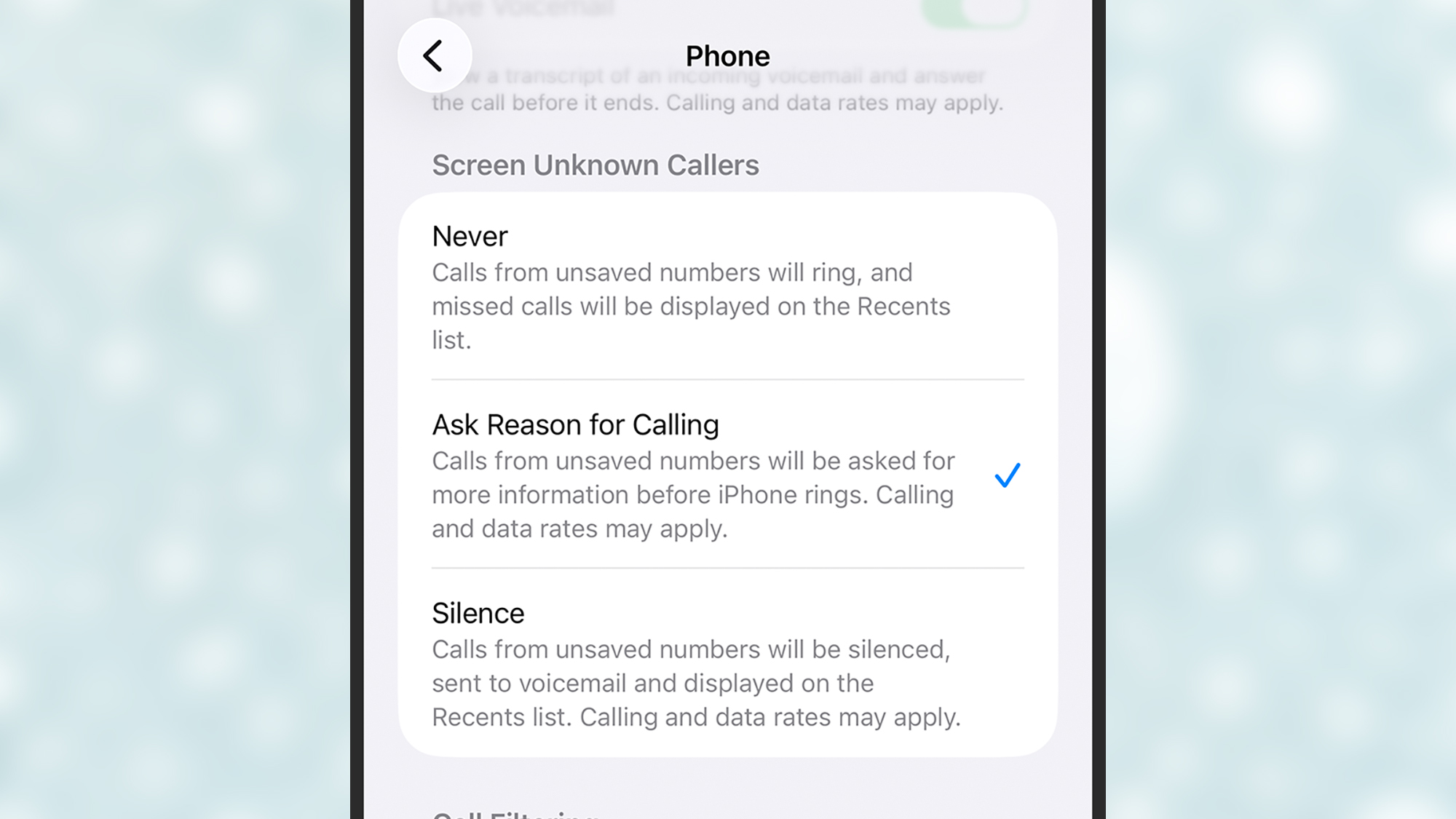
Introduced in iOS 26, call screening will put a robot voice between you and unknown callers, asking them why they’re ringing. You’ll be able to see their response transcribed into text on your screen, and you can then decide whether or not to pick up.
You can set this up by heading into Settings in iOS, then tapping Apps > Phone. Under Screen Unknown Callers, you’ve got three options: Never (calls will ring as normal), Ask Reason for Calling (the call screening feature), and Silence (unknown callers don’t trigger a ring, and always go to voicemail).
There’s also the Unknown Callers toggle switch further down. With this enabled, a missed call from a number not in your contacts gets shifted to a separate list in your Phone app (these calls won’t appear on the main list of recent calls).
Of course this depends on you having all your known contacts up to date. If someone you know has a new number and you haven’t yet assigned it to a name in the Contacts app, now’s the time to do it. If you don’t, you risk calls from friends, family, and work colleagues being silenced or sent through to call screening.
Another step you can take is to block numbers once you know they’re spam. Scammers will often change up their numbers, but blocking can still help. In the Phone app, tap on any blank avatar from any spam caller (on the left), then choose Block Contact.
You can also enlist the help of a third-party spam-blocking app. We don’t have space for a full round-up here, but some of the most popular include RoboKiller, Hiya, and Truecaller. It’s also worth checking with your carrier to see what security apps they provide, such as the ActiveArmor app offered by AT&T.
If you’re on an Android phone
On Pixel phones, open the Phone app, then click on the menu (three horizontal lines, top left) and choose Settings > Caller ID and spam. Enable the See caller and spam ID toggle switch, and incoming calls that Android recognizes as being from suspected scammers will be flagged as such before you answer.
There are a couple more options on the Settings screen worth checking out. Tap Scam Detection, and if you enable this feature, your phone will warn you during a call if it sounds like a scam—though Google warns this isn’t 100 percent foolproof. There’s a full description of how it works on the setting page.
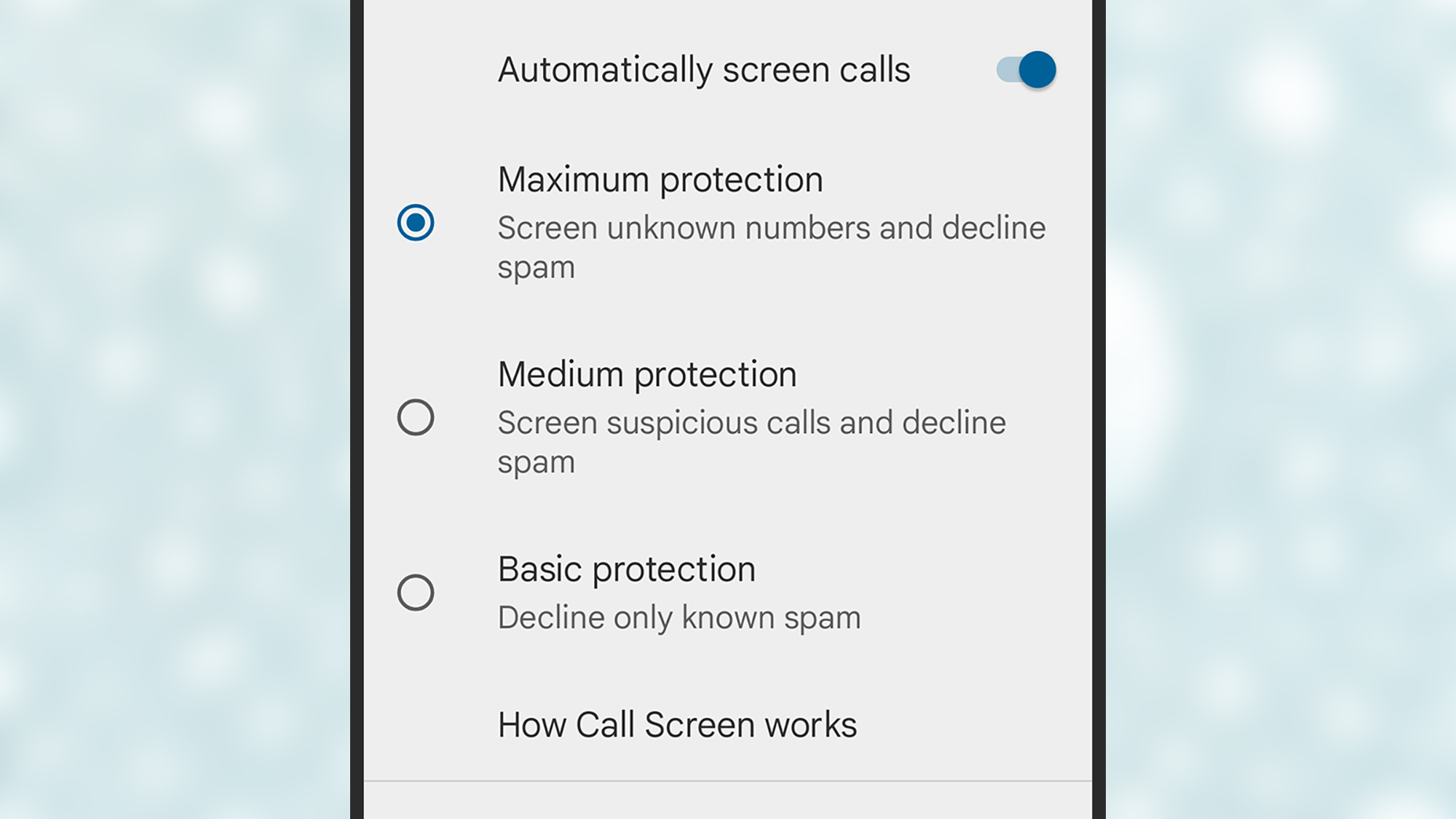
Pixel phones also offer a screening feature—so you can get unknown callers to state their business, and see a transcript of their answer, before picking up. From the Settings screen inside the Phone app, tap either Spam and Call Screen or Call Screen. You can choose from three levels of protection, based on the descriptions given. Note that calls from saved contacts are never screened, unless you do this manually from the incoming call menu.
Samsung Galaxy phones also have a Caller ID and spam protection toggle switch you can enable in the Phone app (tap the three dots in the top right corner and pick Settings). This means potential spam calls will be flagged before you answer them, though (for now at least) the call screening feature remains a Pixel exclusive.
You can also block numbers on any Android phone, just as you can on an iPhone. Open Settings in the Phone app, then tap Blocked numbers (Pixel) or Block numbers (Galaxy): You can automatically block calls from unknown numbers here (numbers not in your contacts list), and block specific numbers that you know to be scammers.
And as on iOS, there are numerous third-party spam blockers you can turn to if you need extra help: They include Call Blocker, Should I Answer?, and CallApp. Your carrier might offer additional tools you can consider as well, including the Call Filter Plus package that’s available from Verizon.

2025 PopSci Best of What’s New